On this page
- Step 1: Prove DNS is actually the bottleneck with curl
- Read curl’s cumulative timings correctly
- Run a pinned-IP A/B check with --resolve
- dig is fast, but the app is slow: check resolver path differences
- Compare OS getaddrinfo() against dig
- Windows: interface DNS isn’t the whole story
- macOS: look past the first nameserver
- Linux: compare systemd-resolved, glibc, and dig
- Browsers and VPNs: verify who actually receives the query
- Many unrelated domains are slow: compare recursive resolvers
- Four pitfalls when interpreting resolver benchmarks
- Occasional multi-second stalls: packet loss, truncation, and TCP fallback
- Large EDNS responses and IP fragmentation
- Separate IPv6 DNS transport from IPv6 website connectivity
- Only one domain fails everywhere: check delegation and DNSSEC
- Spot broken DNSSEC with +cdflag
- Why updated records still return old answers or errors
- Slow DNS in Kubernetes Pods: ndots, CoreDNS, and NodeLocal DNSCache
- Inspect the affected Pod and CoreDNS
- Canary ndots:2 per workload
- CoreDNS metrics and node-level bottlenecks
- Application-layer waits: thread pools, connection pools, and caching
- When flushing DNS cache actually helps—and how to verify the fix
- FAQ
- Will switching to 1.1.1.1 or 8.8.8.8 fix slow DNS lookups?
- Why is dig fast while my browser still hangs on pages?
- What are the side effects of setting ndots:2 in Kubernetes?
- Why do I still get old IPs or errors after updating DNS records?
- References
A website hangs for several seconds on the first load, then snaps open on refresh. A backend service calling an external API times out sporadically. The same hostname resolves instantly on your laptop, yet crawls inside a Kubernetes Pod.
When that happens, most people reach for two reflexive fixes: flush the DNS cache or switch to 8.8.8.8. Sometimes you get lucky. More often, you mask the symptom or break something else—on a corporate network or VPN, pointing at a public resolver breaks internal hostnames and leaks private domain queries to a third party.
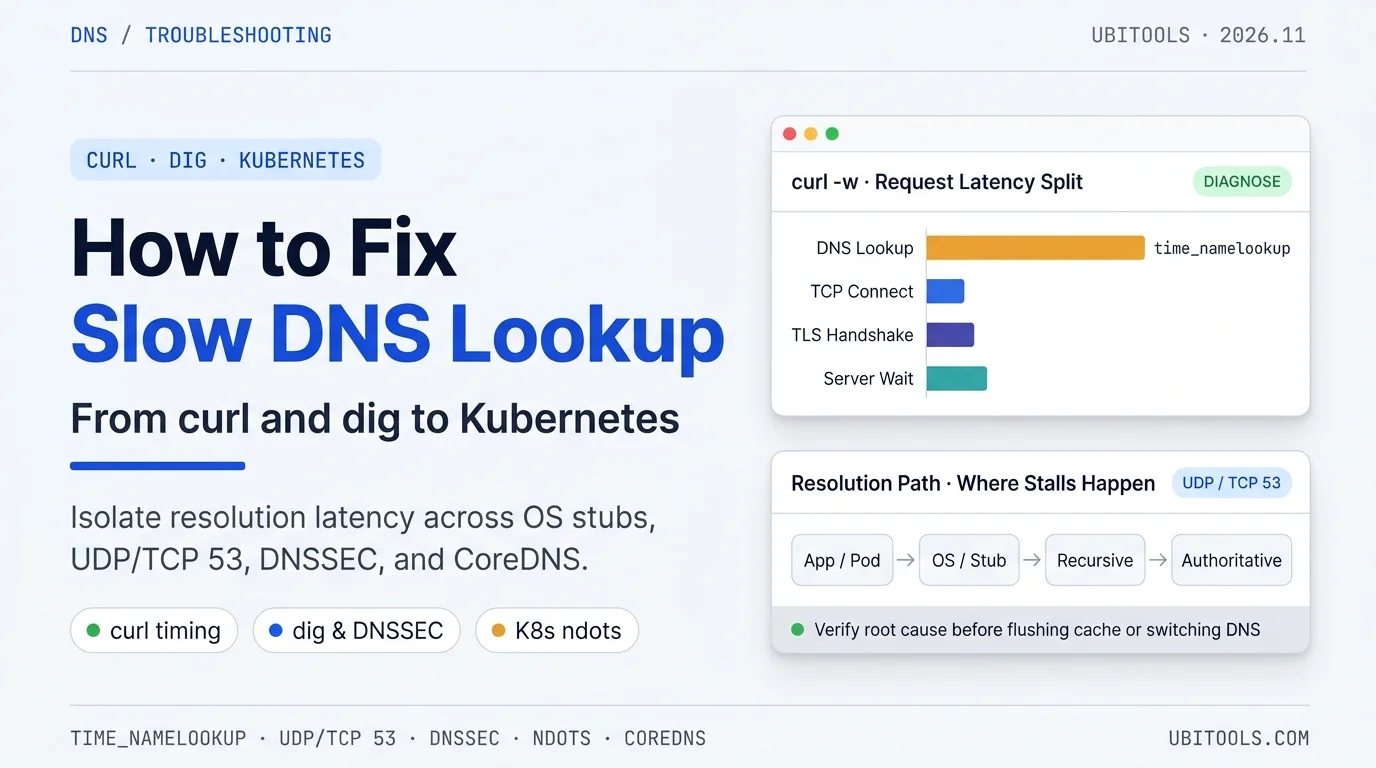
Worse, a sluggish page load or API timeout is not always DNS. TCP packet loss, an IPv6 routing black hole, or a stalled TLS handshake can all look identical from the outside. Effective troubleshooting comes down to one rule: prove where the request is actually waiting, see which resolver received the query, and inspect the exact response before changing anything.
Use this table to jump straight to the section matching your symptom:
| Symptom | Where to look first | Section |
|---|---|---|
| Not sure if DNS is the bottleneck | Split lookup, TCP, TLS, and server wait with curl | Step 1: Prove it’s DNS |
dig is fast, browser or app is still slow | Compare OS resolver path, browser DoH, and VPN split DNS | OS & app resolver paths |
| Many unrelated domains are slow | Benchmark your current recursive resolver against candidates | Compare recursive resolvers |
| Usually fast, occasional 2–5s stalls | Check UDP packet loss, TC=1 truncation, and TCP 53 fallback | Packet loss & TCP fallback |
| Slow on dual-stack networks | Separate IPv6 DNS transport from IPv6 target connectivity | Separate IPv6 issues |
| Only one domain fails across resolvers | Check parent delegation, authoritative servers, and DNSSEC | Authoritative & DNSSEC |
| Host is fast, only Kubernetes Pods are slow | Inspect ndots, search domains, CoreDNS, and NodeLocal | Kubernetes Pod DNS |
| Network queries are fast, app calls still lag | Check thread pools, connection pooling, and app caching | Application-layer waits |
Replace
example.comand192.0.2.53in the commands below with your actual domain and resolver IP. Keep private corporate hostnames pointed strictly at authorized internal resolvers.
Step 1: Prove DNS is actually the bottleneck with curl
Before touching any DNS setting, measure where an HTTPS request actually spends its time. Run a short sampling loop against a small, repeatable endpoint from the affected machine and network (on Windows PowerShell, call curl.exe explicitly so you don’t hit the Invoke-WebRequest alias):
# Direct connection, HTTP/1.1, no redirects, 20 fresh processes
url='https://example.com/'
fmt='ip=%{remote_ip} http=%{http_version} new_conn=%{num_connects} code=%{http_code} lookup=%{time_namelookup} connect=%{time_connect} tls=%{time_appconnect} ready=%{time_pretransfer} first_byte=%{time_starttransfer} total=%{time_total}'

curl --version
for ((i=1; i<=20; i++)); do
  printf 'run=%s ' "$i"
  if curl -q --noproxy '*' --http1.1 -sS -o /dev/null \
      --connect-timeout 5 --max-time 15 -w "$fmt" "$url"; then
    rc=0
  else
    rc=$?
  fi
  printf ' curl_rc=%s\n' "$rc"
  sleep 1
done
Why these flags matter:
-qmust be the very first flag; it skips your.curlrcso hidden defaults don’t skew the test.--noproxy '*'forces a direct connection, ignoring proxy environment variables. If your production traffic must go through a proxy, run a separate proxied sample set rather than mixing the two.- Spawning a fresh
curlprocess per iteration avoids reusing TCP connections or curl’s in-process DNS cache (though OS and upstream recursive caches remain warm).
Read curl’s cumulative timings correctly
A common mistake is adding curl -w timing fields together. Per the curl manual, every timing variable is cumulative from the start of the transfer, so you need to subtract:
| Phase | Formula | What it points to |
|---|---|---|
| Name resolution | time_namelookup | If dominant, investigate DNS or local resolution |
| TCP connect | time_connect - time_namelookup | If dominant, check routing, packet loss, or IPv6 reachability—not DNS |
| TLS handshake | time_appconnect - time_connect | If dominant, check packet loss, cert chain, or server handshake |
| Request & server wait | time_starttransfer - time_pretransfer | If dominant, check network RTT or backend latency (time_starttransfer itself is full TTFB) |
Three caveats when reading the numbers:
- Check the exit code (
curl_rc) first:6means target host resolution failed,5means proxy host resolution failed, and28is a timeout (which can happen during lookup, connect, or TLS). Unreached stages print0.000on failed runs—don’t mistake0for an instant lookup. - HTTP/3 and redirects change the timeline: HTTP/3 runs over QUIC, so the TCP-then-TLS split doesn’t apply; test it separately with
--http3-only. Following redirects (-L) combines multiple hosts into one line, so check the first hop without-Lfirst. - Proxies shift where DNS happens:
socks5resolves locally whilesocks5hresolves on the proxy, andtime_connectmay measure the connection to the proxy itself.
Run a pinned-IP A/B check with --resolve
To confirm that DNS resolution is what’s slowing things down, alternate normal requests with --resolve. Unlike editing /etc/hosts or hitting an IP URL with a Host header, --resolve keeps the domain in the URL so HTTP Host, TLS SNI, and certificate verification all work normally—no -k needed.
host='example.com'
url="https://$host/"
base=(-q --noproxy '*' --http1.1 --ipv4 -sS -o /dev/null
      --connect-timeout 5 --max-time 15)
fmt='ip=%{remote_ip} lookup=%{time_namelookup} connect=%{time_connect} tls=%{time_appconnect} first_byte=%{time_starttransfer} total=%{time_total}'

if ! ip=$(curl "${base[@]}" -w '%{remote_ip}' "$url"); then
  printf 'Baseline request failed; cannot pin IP\n' >&2
  exit 1
fi
: "${ip:?No remote IP captured}"

for ((i=1; i<=10; i++)); do
  modes=(normal pinned)
  if ((i % 2 == 0)); then modes=(pinned normal); fi
  for mode in "${modes[@]}"; do
    extra=()
    if [[ "$mode" == pinned ]]; then extra=(--resolve "$host:443:$ip"); fi
    printf 'run=%s mode=%s ' "$i" "$mode"
    if curl "${base[@]}" "${extra[@]}" -w "$fmt" "$url"; then
      rc=0
    else
      rc=$?
    fi
    printf ' curl_rc=%s\n' "$rc"
  done
  sleep 1
done
If pinned runs stay steady while normal runs stall in lookup, you have strong evidence of a resolution bottleneck. Compare remote_ip across both groups—if normal DNS steers you to a different CDN edge node, end-to-end differences will include edge latency too. Never turn a pinned CDN IP into a permanent fix; providers rotate IPs and rely on DNS for failover.
dig is fast, but the app is slow: check resolver path differences
Few things waste more time than running dig example.com, seeing 10 msec, and concluding DNS is fine while the browser or application keeps stalling.
dig only tests the raw DNS wire path. Applications traverse the full host resolution stack: in-process cache → hosts file → OS name service (glibc NSS / systemd-resolved on Linux, DNS Client on Windows, mDNSResponder on macOS) → recursive resolver.
- On Linux,
digreads/etc/resolv.confdirectly. Even when that points to127.0.0.53,digskips glibc’s NSS pipeline (/etc/nsswitch.conf), anddig @8.8.8.8bypasses the local stub entirely. - On Windows, Microsoft’s DNS client troubleshooting docs explicitly note that
nslookupbypasses the client DNS cache. It is completely normal fornslookupto return a fresh IP while apps stay stuck on a stale negative cache entry. - Browsers like Chrome maintain their own HostCache, built-in async DNS client, and independent DNS-over-HTTPS (DoH) settings.
Compare OS getaddrinfo() against dig
Calling Python’s socket.getaddrinfo() exercises the same system API most applications use:
python3 - example.com <<'PY'
import socket
import sys
import time

host = sys.argv[1]
for i in range(1, 11):
    started = time.perf_counter()
    try:
        rows = socket.getaddrinfo(host, 443, type=socket.SOCK_STREAM)
        elapsed = time.perf_counter() - started
        addresses = sorted({row[4][0] for row in rows})
        print(i, "OK", f"{elapsed:.6f}s", ",".join(addresses))
    except socket.gaierror as error:
        elapsed = time.perf_counter() - started
        print(i, "ERROR", f"{elapsed:.6f}s", repr(error))
    time.sleep(1)
PY
This immediately narrows the scope:
getaddrinfo()is slow,digis fast: focus on the OS resolver service, search domains, and per-domain routing.getaddrinfo()is fast, only the browser is slow: focus on browser DoH settings and enterprise policies.
Windows: interface DNS isn’t the whole story
Inspect the full effective configuration in PowerShell:
ipconfig /all
Get-DnsClientServerAddress
Get-DnsClientNrptPolicy -Effective
nslookup example.com.
ipconfig /displaydns
On a VPN, pay special attention to Get-DnsClientNrptPolicy -Effective. The Name Resolution Policy Table (NRPT) routes specific domain namespaces to dedicated DNS servers—the first DNS server listed on your network adapter is often not the server handling internal corporate names.
macOS: look past the first nameserver
scutil --dnsAlongside default resolvers, macOS uses scoped and supplemental domain-matched configurations. Corporate VPN domains typically rely on supplemental entries, so a healthy default resolver for public sites does not prove internal routing is working.
Linux: compare systemd-resolved, glibc, and dig
On hosts running systemd-resolved, inspect all three paths side by side:
systemctl is-active systemd-resolved
resolvectl status
resolvectl statistics
ls -l /etc/resolv.conf
readlink -f /etc/resolv.conf
grep '^hosts:' /etc/nsswitch.conf

resolvectl query example.com
getent ahosts example.com
dig example.com. A
When /etc/resolv.conf points to 127.0.0.53, that is only the local stub listener; actual upstreams and per-link routing live in resolvectl status. Comparing resolvectl query (resolved path), getent ahosts (glibc NSS path), and dig (wire path) quickly exposes which layer is stalling.
Don’t overwrite /etc/resolv.conf or lock it with chattr +i. It is managed by NetworkManager, systemd-networkd, or your VPN client; bypassing it breaks per-interface split DNS. Make changes through the owning network manager instead.
Browsers and VPNs: verify who actually receives the query
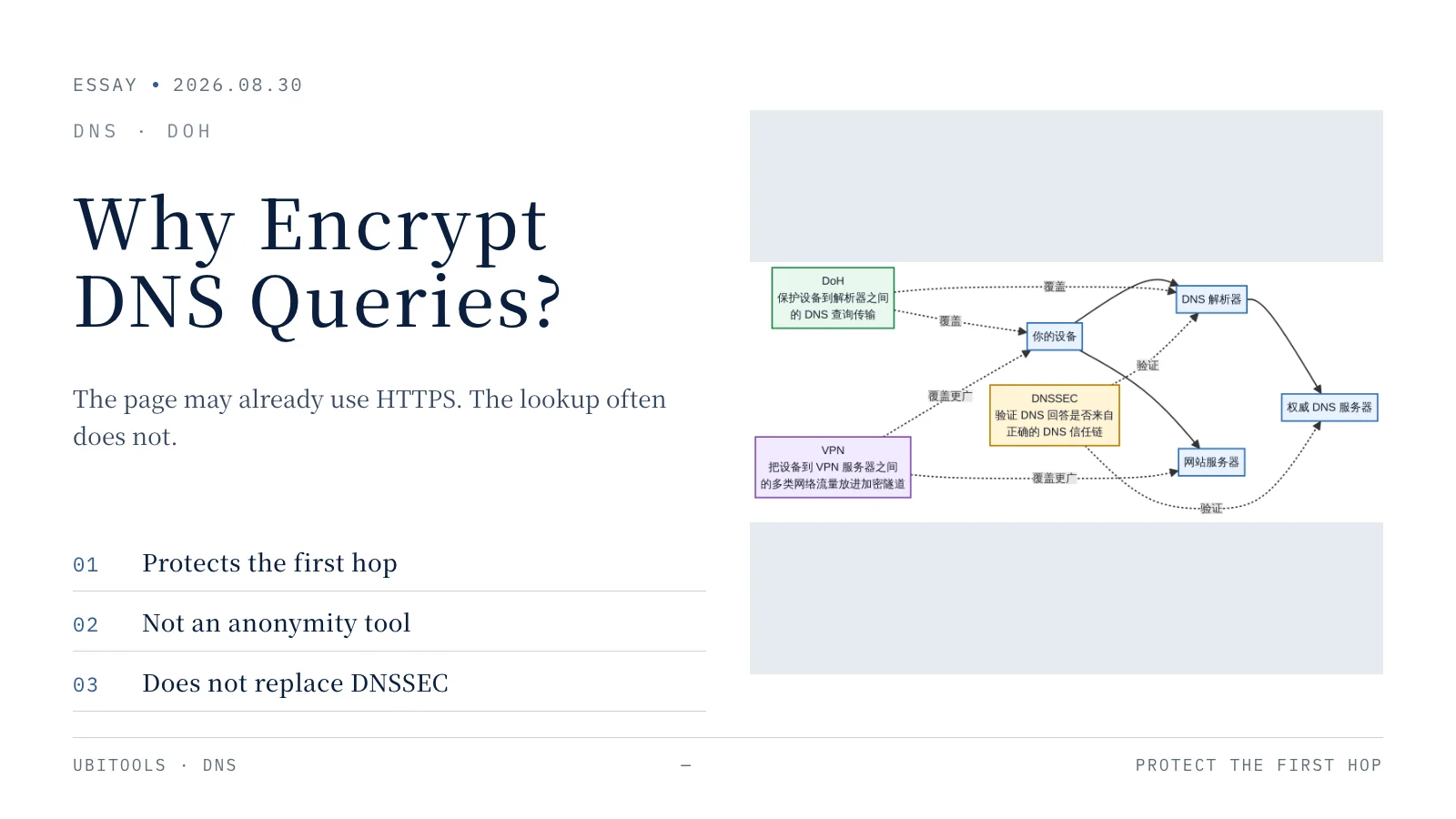
Chromium’s host resolution stack can use either the OS getaddrinfo() or its built-in async DNS client with its own HostCache. If you manually configure a custom DoH provider in the browser, browser queries bypass your OS DNS and corporate resolvers completely. For a deeper look at what DoH encrypts and what it doesn’t, see Why Encrypt DNS Queries?.
On VPNs, keep two mechanisms distinct: split tunneling routes IP traffic, while split DNS routes DNS queries by domain name. In systemd-resolved, a tilde-prefixed domain like ~corp.example is a routing-only domain (routes queries without expanding short names), a plain entry is a search domain (expands wiki to wiki.corp.example), and ~. acts as the catch-all route.
Test both the FQDN and the short name inside the VPN session. If the FQDN works and the short name lags, check search suffixes. If CLI tools work and only the browser fails, check the browser’s DoH provider and managed policies.
Many unrelated domains are slow: compare recursive resolvers
When lots of unrelated websites stall during lookup, your local router forwarder, ISP recursive resolver, or uplink is the prime suspect. Conversely, if multiple resolvers all fail on the same single domain, the problem is almost certainly authoritative or delegation-side—changing your local DNS won’t fix it.
Benchmark your current resolver against public resolvers (1.1.1.1, 8.8.8.8) without modifying system settings. You can also cross-check public answers quickly with our online DNS Lookup tool.
# Linux / Bash 4+; requires BIND dig and GNU shuf. Replace CURRENT with your actual resolver IP.
CURRENT='192.0.2.53'
NAME='example.com.'
logdir=$(mktemp -d)
TIMEFORMAT='process_wall_s=%3R'
printf 'round\tserver\ttype\tdig_rc\tfile\n' > "$logdir/attempts.tsv"
dig -v > "$logdir/dig-version.txt"

for ((round=1; round<=10; round++)); do
  mapfile -t order < <(printf '%s\n' "$CURRENT" 1.1.1.1 8.8.8.8 | shuf)
  types=(A AAAA)
  if ((round % 2 == 0)); then types=(AAAA A); fi
  for server in "${order[@]}"; do
    for type in "${types[@]}"; do
      file="$logdir/${round}-${server}-${type}.txt"
      if { time dig -r "@$server" -q "$NAME" -t "$type" \
          +nosearch +timeout=2 +tries=1; } > "$file" 2>&1; then
        rc=0
      else
        rc=$?
      fi
      printf '%s\t%s\t%s\t%s\t%s\n' \
        "$round" "$server" "$type" "$rc" "$file" >> "$logdir/attempts.tsv"
    done
  done
  sleep 1
done
printf 'Logs saved to: %s\n' "$logdir"
Four pitfalls when interpreting resolver benchmarks
Query timeis not total user wait: In TCP mode, BINDdigrecords its start timestamp after the TCP handshake finishes, sodig +tcpexcludes TCP connect time, and a final successful reply may hide earlier timeout retries. CompareQuery timeagainst the script’sprocess_wall_s.- Bucket by status code before computing averages:
| Outcome | What it means |
|---|---|
No response / dig_rc != 0 | Timeout or transport error—keep exit code and stderr, don’t treat as NXDOMAIN |
SERVFAIL | Resolution failure (upstream timeout, bad delegation, or DNSSEC failure) |
NXDOMAIN | Domain does not exist; dig still exits 0, so don’t count it as a healthy IP lookup |
NOERROR with empty Answer | Normal NODATA (e.g., querying AAAA on an IPv4-only domain) |
- Round 1 is not a “cold cache” on public DNS: Flushing your local cache doesn’t flush a shared public resolver’s cache. Querying random subdomains doesn’t simulate a cold lookup either, because random names hit
NXDOMAINor wildcard paths. - Faster DNS doesn’t guarantee a faster website: Public resolvers use Anycast and may not land in the geographically closest PoP. More importantly, CDNs steer traffic using DNS—Google Public DNS sends EDNS Client Subnet (ECS) prefixes to supporting authoritatives, whereas Cloudflare does not by default. Saving 10 ms on DNS while landing on a suboptimal CDN edge that adds 200 ms is a net loss. See Cloudflare DNS vs Google Public DNS for a full comparison.
Also remember that configuring a primary and secondary DNS server rarely means parallel racing—most stacks wait for the primary to time out before trying the secondary. Never mix a corporate internal DNS with 8.8.8.8 as primary/secondary, or a brief primary hiccup will return NXDOMAIN for internal hosts.
Occasional multi-second stalls: packet loss, truncation, and TCP fallback
Steady high latency and sporadic 2–5 second freezes have different causes. Sporadic stalls usually point to UDP packet loss or broken TCP fallback after UDP truncation.
DNS does not use TCP only for zone transfers. RFC 7766 requires general-purpose DNS implementations to support both UDP and TCP. When a reply exceeds the UDP payload limit, the server sets TC=1 (Truncated), signaling the client to retry over TCP 53. If a firewall allows UDP 53 but blocks TCP 53, small queries succeed while large responses hang and time out.
Note: When a UDP packet is simply dropped in transit, there is no
TC=1flag—the client waits for its UDP retry timeout rather than switching straight to TCP.
Test UDP, TCP, and fallback behavior explicitly:
R='192.0.2.53'
Q='example.com.'

# 1. Pure UDP: +ignore stops dig from auto-retrying over TCP on TC=1
dig -r "@$R" "$Q" A +notcp +ignore +bufsize=1232 +timeout=2 +tries=1

# 2. Pure TCP
dig -r "@$R" "$Q" A +tcp +timeout=2 +tries=1

# 3. Normal UDP-with-TCP-fallback
dig -r "@$R" "$Q" A +notcp +noignore +bufsize=1232 +timeout=2 +tries=1
Watch the subtle flag rule: +notcp alone does not disable TCP fallback on truncation—you must pair it with +ignore.
- UDP times out, TCP succeeds: investigate UDP packet loss, NAT state timeouts, or large-packet drops.
- UDP returns
tc, TCP connect fails: a firewall is almost certainly blocking TCP 53. - TCP connects, no DNS answer arrives: the issue is in server processing or upstream forwarding, not a closed port.
Large EDNS responses and IP fragmentation
DNSSEC signatures and DNSKEY records can push UDP responses past the path MTU. If a client advertises a large EDNS buffer (such as 4096 bytes) and an intermediate firewall drops IP fragments, ordinary small lookups fly while signed zones intermittently time out.
1232 bytes is the standard conservative baseline (IPv6 minimum MTU 1280 minus 40-byte IPv6 header and 8-byte UDP header), while RFC 9715 recommends a maximum UDP payload of 1400 bytes (allowing smaller values). To test for fragmentation drops, query a signed zone’s DNSKEY record:
Z='example.com.'

dig -r "@$R" "$Z" DNSKEY +dnssec +notcp +ignore +bufsize=4096 +timeout=2 +tries=1
dig -r "@$R" "$Z" DNSKEY +dnssec +notcp +ignore +bufsize=1232 +timeout=2 +tries=1
dig -r "@$R" "$Z" DNSKEY +dnssec +tcp +timeout=2 +tries=1
If 4096 times out, 1232 returns tc, and +tcp succeeds immediately, large UDP packets are being dropped on the path. Capture packets on Linux to confirm—don’t filter only on udp port 53, or you’ll miss trailing IP fragments (which lack a UDP header) and ICMP messages:
sudo tcpdump -ni any -s 0 -vv -c 200 \
  'host 192.0.2.53 or icmp or icmp6'
Separate IPv6 DNS transport from IPv6 website connectivity
On dual-stack networks, people routinely conflate “IPv6 DNS is slow” with “the website is unreachable over IPv6”—and respond by disabling IPv6 globally. They are two separate layers:
- Record type:
Areturns IPv4 addresses;AAAAreturns IPv6 addresses (see Understanding DNS Record Types). - Transport family: you can query
AAAAover IPv4, and you can queryAover IPv6.
First, test the resolver’s IPv4 vs IPv6 transport directly with dig -4 and dig -6:
R4='192.0.2.53'
R6='2001:db8::53'
Q='example.com.'

dig -r -4 "@$R4" "$Q" A +timeout=2 +tries=1
dig -r -6 "@$R6" "$Q" A +timeout=2 +tries=1

# Over IPv4 transport, request the IPv6 service address
dig -r -4 "@$R4" "$Q" AAAA +timeout=2 +tries=1
Then compare the actual HTTPS connection over IPv4 vs IPv6:
URL='https://example.com/'
FMT='ip=%{remote_ip} lookup=%{time_namelookup} connect=%{time_connect} tls=%{time_appconnect} total=%{time_total}\n'

curl -q --noproxy '*' -4 --http1.1 --max-time 15 -sS -o /dev/null -w "$FMT" "$URL"
curl -q --noproxy '*' -6 --http1.1 --max-time 15 -sS -o /dev/null -w "$FMT" "$URL"
dig -6times out,dig -4works: fix IPv6 routing or firewall rules to the resolver.- Both
AandAAAAresolve fast,curl -6hangs inconnectortls: DNS is healthy; fix IPv6 routing or path MTU to the destination.
Modern clients implement Happy Eyeballs (RFC 8305), racing IPv6 and IPv4 connection attempts to hide dead IPv6 routes, though it cannot rescue an IPv6 connection that succeeds and later hits an MTU black hole. Use -4/-6 to isolate the broken layer rather than disabling IPv6 across the board.
Only one domain fails everywhere: check delegation and DNSSEC
If 1.1.1.1, 8.8.8.8, and your ISP resolver all time out or return SERVFAIL for one specific domain, the problem lives in that domain’s delegation, authoritative servers, or DNSSEC chain.
Skip +short and inspect the full dig output. Modern resolvers often include Extended DNS Error (EDE) codes that tell you outright whether an authoritative server was unreachable, a signature expired, or a stale answer was served.
# Trace public delegation (runs iteratively from your machine, not inside a public resolver)
Q='www.example.com.'
dig -r +trace "$Q" A +timeout=2 +tries=1

# Query each authoritative IP directly with +norecurse
ZONE='example.com.'
AUTH_IP='192.0.2.54'

dig -r "@$AUTH_IP" "$ZONE" SOA +norecurse +timeout=2 +tries=1
dig -r "@$AUTH_IP" "$Q" A +norecurse +timeout=2 +tries=1
dig -r "@$AUTH_IP" "$Q" A +norecurse +tcp +timeout=2 +tries=1
Check three things on every authoritative server:
- The
aa(authoritative answer) flag is present andSOA serialmatches across all servers. - Both UDP 53 and TCP 53 respond cleanly without overly aggressive rate limits or ACLs blocking public resolvers.
- After a DNS provider migration, the parent zone NS and glue records at the registrar actually point to the new nameservers.
Spot broken DNSSEC with +cdflag
A stale DS record at the registrar or an expired RRSIG causes validating resolvers to return SERVFAIL. Compare two queries against the same validating resolver:
R='192.0.2.53'
Q='www.example.com.'

dig -r "@$R" "$Q" A +dnssec +timeout=2 +tries=1
dig -r "@$R" "$Q" A +dnssec +cdflag +timeout=2 +tries=1
+cdflag (Checking Disabled) skips validation for that single query. If the normal query returns SERVFAIL while +cdflag returns valid records, you have almost certainly found a broken DNSSEC chain. Verify the parent DS against the child DNSKEY (tools like DNSViz make this obvious) and fix the chain—don’t permanently disable DNSSEC as a “performance tweak.”
Why updated records still return old answers or errors
Three caching behaviors explain most “I fixed it, why is it still broken?” moments:
- Unexpired TTL: Lowering TTL after an incident doesn’t evict records already cached upstream. Lower TTLs ahead of planned migrations and wait for the old TTL to drain.
- Negative caching: Querying a nonexistent name (
NXDOMAIN) or missing record type (NODATA) gets cached formin(SOA TTL, SOA.MINIMUM)per RFC 2308. Creating the record afterward won’t clear upstream negative caches—you have to wait them out. - Serve-stale: Under RFC 8767, resolvers may return expired data with a positive TTL when authoritative servers are unreachable, so a non-zero TTL does not guarantee fresh data.
Also audit CNAME chains: deep cross-zone CNAME hops add cold-lookup latency. Trim unnecessary aliases and fix loops, but keep provider-mandated CNAMEs intact instead of replacing them with a raw CDN IP.
Slow DNS in Kubernetes Pods: ndots, CoreDNS, and NodeLocal DNSCache
When host lookups are fast but Pods are slow, the usual suspects are ndots search amplification, node conntrack contention, or CoreDNS upstreams.
Under the default dnsPolicy: ClusterFirst, a Linux Pod’s /etc/resolv.conf typically looks like this:
nameserver 10.32.0.10
search payments.svc.cluster.local svc.cluster.local cluster.local
options ndots:5
With glibc, any hostname containing fewer than ndots (5) dots is queried against every search suffix first, and only tried as an absolute name if all of them fail. Looking up api.example.com (2 dots) can expand into:
api.example.com.payments.svc.cluster.local.
api.example.com.svc.cluster.local.
api.example.com.cluster.local.
api.example.com.
Because glibc often issues A and AAAA queries in parallel, a single external lookup can multiply into several internal queries, adding tail latency and load on CoreDNS.
Inspect the affected Pod and CoreDNS
NS='payments'
POD='your-pod-name'
CONTAINER='your-container-name'

kubectl -n "$NS" get pod "$POD" -o wide
kubectl -n "$NS" exec "$POD" -c "$CONTAINER" -- cat /etc/resolv.conf

kubectl -n kube-system get pods -l k8s-app=kube-dns -o wide
kubectl -n kube-system get endpointslice -l kubernetes.io/service-name=kube-dns -o wide
kubectl -n kube-system get configmap coredns -o yaml
kubectl -n kube-system logs -l k8s-app=kube-dns --since=10m --tail=200
If dig is available inside the container, compare an absolute FQDN (trailing dot) against +search with ndots=5 and ndots=2:
DNS_IP='10.32.0.10' # Use the nameserver from this Pod's /etc/resolv.conf
TARGET='www.kubernetes.io'

# Absolute FQDN lookup
kubectl -n "$NS" exec "$POD" -c "$CONTAINER" -- \
  dig -r "@$DNS_IP" "$TARGET." A +timeout=2 +tries=1

# Compare search expansion at ndots=5 vs ndots=2
kubectl -n "$NS" exec "$POD" -c "$CONTAINER" -- \
  dig -r "@$DNS_IP" "$TARGET" A +search +showsearch +ndots=5 +timeout=2 +tries=1
kubectl -n "$NS" exec "$POD" -c "$CONTAINER" -- \
  dig -r "@$DNS_IP" "$TARGET" A +search +showsearch +ndots=2 +timeout=2 +tries=1
Tip: Avoid blindly adding a trailing dot to HTTPS URLs in application code (like
https://api.example.com./) just to skip search domains. Trailing dots can break TLS SNI matching, HTTPHostrouting, cookie scoping, and server redirects.
Canary ndots:2 per workload
If your workload mostly calls external multi-label hostnames (2+ dots, like api.example.com), test ndots:2 on a single Deployment first:
spec:
  template:
    spec:
      dnsPolicy: ClusterFirst
      dnsConfig:
        options:
          - name: ndots
            value: "2"
Three Kubernetes gotchas to avoid:
- Apex domains like
example.comhave only 1 dot, so they still traverse search suffixes underndots:2. - Don’t switch
dnsPolicytoDefaultthinking it means “Kubernetes default”—Defaultmakes the Pod inherit the node’s DNS config and lose cluster Service resolution. - Linux Pods with
hostNetwork: trueneedClusterFirstWithHostNetto keep cluster DNS (not supported on Windows Pods).
CoreDNS metrics and node-level bottlenecks
Fast CoreDNS server latency doesn’t rule out Pod-side waiting—packets can be dropped or delayed by conntrack before ever reaching CoreDNS. If you scrape CoreDNS with Prometheus, check these three queries (adjust job="coredns" to match your scrape labels):
# CoreDNS internal handling p95
histogram_quantile(
  0.95,
  sum by (le, type) (
    rate(coredns_dns_request_duration_seconds_bucket{job="coredns"}[5m])
  )
)

# Upstream forward p95 (replaces deprecated coredns_forward_request_duration_seconds)
histogram_quantile(
  0.95,
  sum by (le, to) (
    rate(coredns_proxy_request_duration_seconds_bucket{
      job="coredns", proxy_name="forward"
    }[5m])
  )
)

# Response rate by rcode
sum by (rcode) (
  rate(coredns_dns_responses_total{job="coredns"}[5m])
)
Key things to check in CoreDNS and on the node:
coredns_forward_max_concurrent_rejects_totalclimbing: CoreDNS hit its upstream concurrency cap and is rejecting queries withREFUSED.cache 30is a ceiling, not a fixed TTL: it caps max cache duration. Check minimum TTL andserve_staleif stale answers linger.- NodeLocal DNSCache: cuts cross-node hops and conntrack pressure and uses TCP to CoreDNS, but adds a node-local failure point. If only one node’s Pods are slow, check that node’s NodeLocal Pod for
OOMKilledor crash loops before scaling central CoreDNS. - Forwarding loops and older base images: pointing CoreDNS upstream at a host’s
systemd-resolvedstub (127.0.0.53) can trigger a forwarding loop. Also, as noted in the Kubernetes DNS debugging docs, Alpine 3.17 and earlier (musl 1.2.3) lack DNS TCP fallback, causing large responses to time out.
Application-layer waits: thread pools, connection pools, and caching
If packet captures and dig are both fast while your app’s DNS calls stay slow, look inside the runtime:
- Node.js
dns.lookup()thread-pool contention:dns.lookup()calls the OS resolver on the libuv thread pool. Heavy filesystem I/O or crypto work can starve that pool and queue up DNS lookups.dns.resolve4()/dns.resolve6()bypass libuv via c-ares and support{ ttl: true }, but they also skip/etc/hostsand OS split-DNS rules—verify private and cluster name behavior before switching. - Bounded, TTL-aware app caching: If you add in-process caching, enforce a size cap, honor record TTLs, give errors a short negative TTL, and coalesce concurrent lookups for the same name (singleflight). Never cache indefinitely or hardcode CDN IPs in
/etc/hosts. - Connection pooling vs. DNS failover: HTTP keep-alive eliminates repeated lookups, which also means existing connections keep talking to old IPs after a DNS change. Services relying on DNS failover need a finite connection max lifetime.
- DoH / DoT cold starts: Encrypted DNS over TLS or HTTPS pays a handshake cost on the first connection and amortizes it over reused sessions. Don’t equate a one-shot cold CLI test with steady-state browser latency.
When flushing DNS cache actually helps—and how to verify the fix
Flushing cache only fixes stale local state (when upstream records have recovered but your machine still holds an old answer or negative cache entry). It will not fix network RTT, packet loss, broken VPN split DNS, or authoritative errors.
For example, if nslookup on Windows already returns the new IP while ipconfig /displaydns still shows a cached “name does not exist” entry, a flush makes sense:
# Windows
ipconfig /flushdns
On Linux with systemd-resolved:
# Flushes only the local stub cache, not browser or upstream caches
sudo resolvectl flush-caches
Note that resolvectl reset-server-features resets EDNS/TCP feature probing rather than flushing cached records—don’t bundle cache flushes and service restarts into a cron job, as periodic flushing creates cold-lookup spikes and makes latency worse.
How to confirm the fix worked:
Re-run your measurements from the original application and network instead of stopping at one fast dig:
- Confirm the
lookuptail latency and timeouts are gone across a multi-samplecurlrun. - Check
remote_ipand total request time to make sure a resolver change didn’t degrade CDN routing. - For VPN or Kubernetes changes, re-test internal FQDNs, short names, and cluster Services to verify nothing regressed.
FAQ
Will switching to 1.1.1.1 or 8.8.8.8 fix slow DNS lookups?
Only if your current recursive resolver or router forwarder is the bottleneck. If the real cause is VPN split DNS, UDP packet loss, an IPv6 routing black hole, or an authoritative/DNSSEC issue on the target domain, switching to a public resolver won’t help—and can break internal corporate hostnames or worsen CDN routing.
Why is dig fast while my browser still hangs on pages?
They take different paths. dig sends a raw DNS packet and skips the browser’s HostCache, built-in DNS client, and DoH provider—and it doesn’t perform TCP connect, TLS handshake, or page rendering. Use curl -w first to verify time is actually spent in time_namelookup, then compare OS getaddrinfo() with your browser’s Secure DNS settings.
What are the side effects of setting ndots:2 in Kubernetes?
External hostnames with 2 or more dots (such as api.example.com) are queried as absolute names first, skipping unnecessary cluster search suffixes. The trade-off is that internal relative names with 2 dots—such as my-svc.my-ns.svc, which relies on .cluster.local being appended—will trigger an external lookup returning NXDOMAIN before falling back to the search list. Roll out ndots:2 per Deployment and test both internal and external names.
Why do I still get old IPs or errors after updating DNS records?
Three common causes: the previous record’s TTL hasn’t expired yet; querying the name before it existed triggered upstream negative caching (min(SOA TTL, SOA.MINIMUM)); or a brief authoritative outage caused a recursive resolver to serve stale data. Flushing your local machine cannot force upstream recursive resolvers to refresh early.
References
- curl manual: timing variables, proxies, HTTP/3, and
--resolve - ISC BIND 9
digmanual: query options, transport, and DNSSEC flags - Chromium Host Resolution README: system resolver, built-in DNS, and HostCache
- systemd-resolved manual: local stub, NSS, and per-link routing
- Microsoft Docs: Troubleshooting DNS clients & VPN name resolution (NRPT)
- RFC 7766: DNS Transport over TCP
- RFC 9715: IP Fragmentation Avoidance in DNS over UDP
- RFC 8305: Happy Eyeballs Version 2
- RFC 2308: Negative Caching of DNS Queries
- RFC 8767: Serving Stale Data to Improve DNS Resiliency
- Kubernetes Docs: Debugging DNS Resolution
- Kubernetes Docs: NodeLocal DNSCache
- CoreDNS Plugins: metrics, forward, and cache
- Node.js DNS API:
lookupvsresolve