iOS · · 3 min read
Complete Guide to Swift UserDefaults: From Basics to Advanced Practices
Deep dive into UserDefaults in Swift, learn how to store user preferences, handle custom objects, understand security best practices, and master the @AppStorage property wrapper in SwiftUI.
 Mttao @bearboy80 573 words 中文 →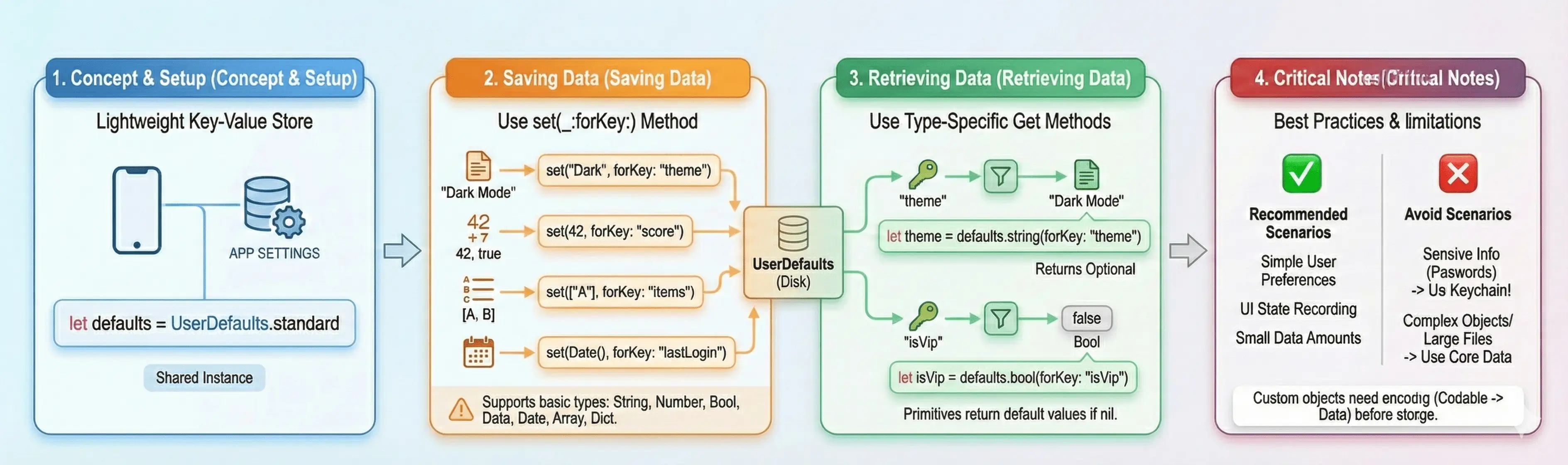
1. Introduction: What is UserDefaults
UserDefaults is an API in Swift primarily used for storing small amounts of persistent data, such as user preferences and application settings. It provides an interface for accessing user default settings data, persisting key-value pairs to ensure data remains available after app restarts.
2. Data Types and Storage Methods
2.1 Basic Data Types
UserDefaults is typically used to store basic data types, including String, Int, Bool, Array, and Dictionary. At the underlying level, it supports property list format data such as NSString, NSNumber, NSData, NSArray, or NSDictionary.
2.2 Custom Objects
UserDefaults does not directly support storing custom objects. However, by leveraging Swift’s Codable protocol (which combines Encodable and Decodable), you can easily implement storage and retrieval of custom objects.
- Storage Process: You must use
JSONEncoderto encode a custom object instance into aDataobject. Then store thisDataobject inUserDefaultswith a specified key. - Retrieval Process: First, retrieve the
DatafromUserDefaultsusing the same key, then useJSONDecoderto decode it back to the original custom object. - Use cases for custom objects include user profiles (such as a
Userstruct containingname,age, andemail) or application configuration.
3. Storage Location and Security Considerations
3.1 Storage Location
Data in UserDefaults is stored in property list (.plist) files in the device’s file system. For sandboxed processes, these files are typically located in the Library/Preferences directory of the application container folder.
3.2 Security and Capacity Limitations (Best Practices)
When using UserDefaults, there are two important limitations and security guidelines to follow:
- Avoid Storing Sensitive Data: You should never use
UserDefaultsto store sensitive data such as passwords, API keys, sensitive tokens, encryption keys, or in-app purchase status. This is because this data is stored in unencrypted form on the device’s file system, and attackers can easily access these files, leading to serious security vulnerabilities (CWE-311). For such sensitive information, you should use the system-provided Keychain, which is an encrypted secure database. - Limit Data Size:
UserDefaultsis only suitable for small amounts of lightweight data. Avoid storing large objects, complex structures, or image data. This is because the entireplistfile is loaded into memory when the application launches, and storing too much data can significantly impact app performance.
4. Code Example
The following is a complete SwiftUI example demonstrating how to use the @AppStorage property wrapper to interact with UserDefaults:
import SwiftUI

struct ContentView: View {
    // MARK: - @AppStorage Definition
    // Syntax: @AppStorage("Key in UserDefaults") var variableName = defaultValue

    @AppStorage("username") private var username: String = "Guest"
    @AppStorage("isDarkMode") private var isDarkMode: Bool = false
    @AppStorage("volumeLevel") private var volumeLevel: Double = 0.5
    @AppStorage("loginCount") private var loginCount: Int = 0

    var body: some View {
        NavigationView {
            Form {
                // Section 1: User Information (String)
                Section(header: Text("Personal Information")) {
                    HStack {
                        Image(systemName: "person.circle.fill")
                            .foregroundColor(.blue)
                            .font(.largeTitle)

                        VStack(alignment: .leading) {
                            Text("Welcome, \(username)!")
                                .font(.headline)
                            Text("Login Count: \(loginCount)")
                                .font(.caption)
                                .foregroundColor(.secondary)
                        }
                    }

                    TextField("Change Nickname", text: $username)
                        .textFieldStyle(RoundedBorderTextFieldStyle())
                }

                // Section 2: Settings (Bool & Double)
                Section(header: Text("App Settings")) {
                    // Toggle directly bound to isDarkMode, automatically saves when toggled
                    Toggle(isOn: $isDarkMode) {
                        HStack {
                            Image(systemName: "moon.fill")
                                .foregroundColor(isDarkMode ? .purple : .gray)
                            Text("Dark Mode")
                        }
                    }

                    VStack(alignment: .leading) {
                        Text("Volume: \(Int(volumeLevel * 100))%")
                        Slider(value: $volumeLevel, in: 0...1)
                    }
                }

                // Section 3: Actions (Int)
                Section {
                    Button("Increment Login Count (Test Data Persistence)") {
                        loginCount += 1
                    }

                    Button("Reset All Settings") {
                        resetSettings()
                    }
                    .foregroundColor(.red)
                }
            }
            .navigationTitle("UserDefaults Demo")
        }
        // Dynamically change the entire app's appearance based on stored value
        .preferredColorScheme(isDarkMode ? .dark : .light)
    }

    // Reset Logic
    func resetSettings() {
        // You can directly modify variables here, AppStorage will automatically sync to UserDefaults
        username = "Guest"
        isDarkMode = false
        volumeLevel = 0.5
        loginCount = 0

        // Or use the traditional deletion method (completely remove Key)
        // if let bundleID = Bundle.main.bundleIdentifier {
        //     UserDefaults.standard.removePersistentDomain(forName: bundleID)
        // }
    }
}

struct ContentView_Previews: PreviewProvider {
    static var previews: some View {
        ContentView()
    }
}
5. Advanced Usage and Management
5.1 SwiftUI Integration (@AppStorage)
In SwiftUI, @AppStorage is a property wrapper that simplifies interaction with UserDefaults. Using @AppStorage makes it easy to store and retrieve global application data (such as user preferences), and it automatically updates associated views when values in the underlying UserDefaults change.
5.2 Managing and Deleting Data
- Deleting Objects: To delete a key-value pair stored in
UserDefaults, you can use theremoveObject(forKey:)method. - Synchronization: Historically, the
synchronize()method was used to force immediate persistence of data to disk, but this method is now deprecated and considered unnecessary. The system automatically handles asynchronous updates.
6. Conclusion
UserDefaults is like a lightweight storage that’s perfect for recording application settings and simple state. However, because it’s unencrypted and has limited capacity, you should never treat it as a safe (for sensitive data, use Keychain) or a library (for large amounts of complex data, use Core Data or FileManager).
Mttao GitHub ↗
Exploring technology and life's wisdom